The HP CMSL (Client Management Solution Library) provides a comprehensive set of tools for managing and automating IT assets within an organization. It enables seamless integration with enterprise systems, offering advanced features for device tracking, monitoring, and reporting. With its customizable workflows, HP CMSL ensures efficient management of IT resources throughout their lifecycle. In this blog post, we’ll take a closer look at the integration possibilities between HP CMSL and Altiris.

Since 28th of October 2025 a new version of HP Client Management Script Library (HPCMSL) is available. Version 1.8.5 includes the new Get-HPWarrantyInfo command and support for Windows 11 25H2.
Prerequiste: Download and install HP Client Management Script Library (HPCMSL)
Install-Module HPCMSL -Scope AllUsers -Force -AcceptLicense
Run the following Powershell command to get Warranty Information about your HP Device
Get-HPWarrantyInfo

Create a Custom Inventory Dataclass in Altiris
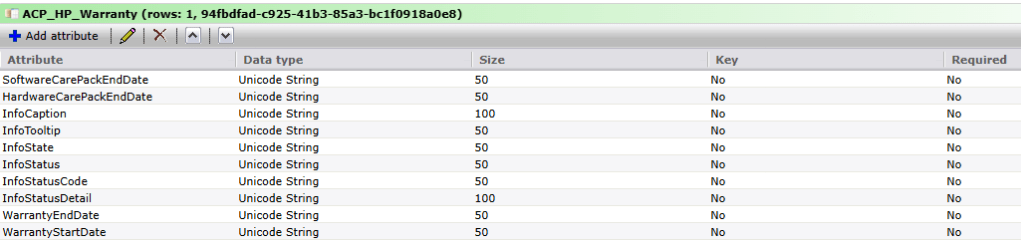
To create a Custom Dataclass open the SMP Console -> Settings -> All Settings -> Discovery and Inventory -> Inventory Solution -> Manage Custom Data Classes and click on New data Classes. Specify a name and add the follwing Attributes to the Dataclass.
Custom Inventory Powershell Script
Create a new Task in the SMP Console -> Manage -> Jobs and Tasks -> New -> Task and paste the following Powershell Script. Don´t forget to switch the Script type to: Powershell Windows.
Run the Powershell Script on one Device to verify that it works as expected!

#########################################################################
#   HP Warranty Custom Inventory for Altiris / Symantec Management Platform
#   Requires: HP Client Management Script Library (HPCMSL) 1.8.5
#########################################################################

# ---- STATIC SECTION - DO NOT MODIFY ----------------------------------
$nse = New-Object -ComObject Altiris.AeXNSEvent
$nse.To = "{1592B913-72F3-4C36-91D2-D4EDA21D2F96}"
$nse.Priority = 1
# ----------------------------------------------------------------------

# ---- MODIFY: Insert your Custom DataClass GUID here -------------------
$strDataClassGuid = "{YOUR-CUSTOM-DATACLASS-GUID-HERE}"
# ----------------------------------------------------------------------

# Create a new data block for this Data Class
$objDCInstance = $nse.AddDataClass($strDataClassGuid)
$objDataclass = $nse.AddDataBlock($objDCInstance)

# Add a new row of data
$objDataRow = $objDataclass.AddRow()

# ---- Function: Convert date to DD/MM/YYYY HH:MM:SS -------------------
function Convert-DateFormat($date) {
    if ([string]::IsNullOrWhiteSpace($date)) { return "" }
    try {
        return (Get-Date $date -ErrorAction Stop).ToString("dd/MM/yyyy HH:mm:ss")
    } catch {
        return $date  # fallback to raw value if conversion fails
    }
}

# ---- Get HP Warranty Info --------------------------------------------
try {
    # Ensure HPCMSL module is available
    if (-not (Get-Module -ListAvailable -Name HPCMSL)) {
        Write-Host "HPCMSL module not found. Please install it via 'Install-Module HPCMSL -Scope AllUsers -Force -AcceptLicense'."
        exit 1
    }

    Import-Module HPCMSL -ErrorAction Stop
    $info = Get-HPWarrantyInfo

    # Convert date fields to DD/MM/YYYY HH:MM:SS format
    $SoftwareCarePackEndDate = Convert-DateFormat $info.SoftwareCarePackEndDate
    $HardwareCarePackEndDate = Convert-DateFormat $info.HardwareCarePackEndDate
    $WarrantyEndDate         = Convert-DateFormat $info.WarrantyEndDate
    $WarrantyStartDate       = Convert-DateFormat $info.WarrantyStartDate

    # Fill fields with HP Warranty data
    # Note: Field order must match your Altiris DataClass field order!
    $objDataRow.SetField(0, $SoftwareCarePackEndDate)
    $objDataRow.SetField(1, $HardwareCarePackEndDate)
    $objDataRow.SetField(2, $info.Caption)
    $objDataRow.SetField(3, $info.Tooltip)
    $objDataRow.SetField(4, $info.State)
    $objDataRow.SetField(5, $info.Status)
    $objDataRow.SetField(6, $info.StatusCode)
    $objDataRow.SetField(7, $info.StatusDetail)
    $objDataRow.SetField(8, $WarrantyEndDate)
    $objDataRow.SetField(9, $WarrantyStartDate)
}
catch {
    Write-Host "Error retrieving HP Warranty Info: $_"
    exit 1
}

# ---- OUTPUT SECTION ---------------------------------------------------

# For testing: Displays NSE XML in console
#$nse

# For production use, comment the above line and uncomment below:
$nse.SendQueued()
Reporting
Single Device
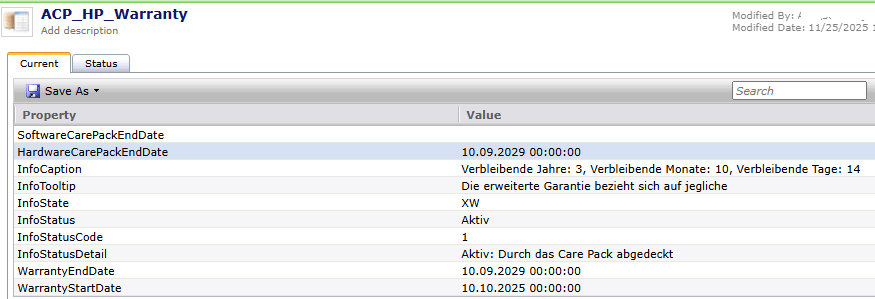
To check a single Device double click on a Device and click on View -> Inventory -> Custom
Create a Report
Open SMP Console -> Manage -> Computers -> and in the middle pane click on expand filter criteria

then click on View filter results report icon

in the select columns for report type the name of your Dataclass and select the required Dataclass Attributes you want to report on…

Click on Save as Report and save the report.
Additionally, one could create an Altiris Automation Policy that generates a list of devices nearing the end of their warranty period and sends it to the purchasing department. This allows for proactive planning and ensures that replacement or extension of warranties can be managed before they expire. This functionality is fully supported within Altiris, further enhancing the efficiency of IT asset management.

 Endpoint Management