
A customer wants to send an email to the Licensing Department after a software installation runs successfully on a device to assign a license for the primary user. The email should include the user who ran the job in the ITMS console, the name of the device, the name of the job / task, start and end time, the status, and the primary user of the device.
The information about the primary user could be helpful in assigning a license to the ‚correct‘ user. For most manufacturers, the license is tied to a user and not to the device.
Initially, I thought this would be a very easy task, but after many attempts, I found that it isn’t as simple as it seems – that’s why I created this blog post.
First, we tried using a server job that executed the automation policy via an ASDK and many other methods, but in the end, we ended up with the following solution…
Prerequisites
- Create a Job / Task which installs the required Software / Application
- A Report to query for the required Job / Task and report the Status
- Create an Automation Policy to send the Email to the Licensing Department
Create a Job / Task to install an Application

Create a new SQL Report
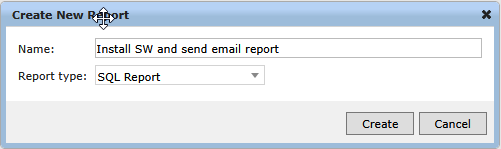
Create a new SQL Report using -> ITMS Console -> click on Manage Computers -> select Reports ->click on New Report ->Base Report ->Provide a Name im my case I´m using Install SW and send email report as name and select SQL Report from the drop down menu.
Click on Edit and replace the SQL Query with the query provided below.
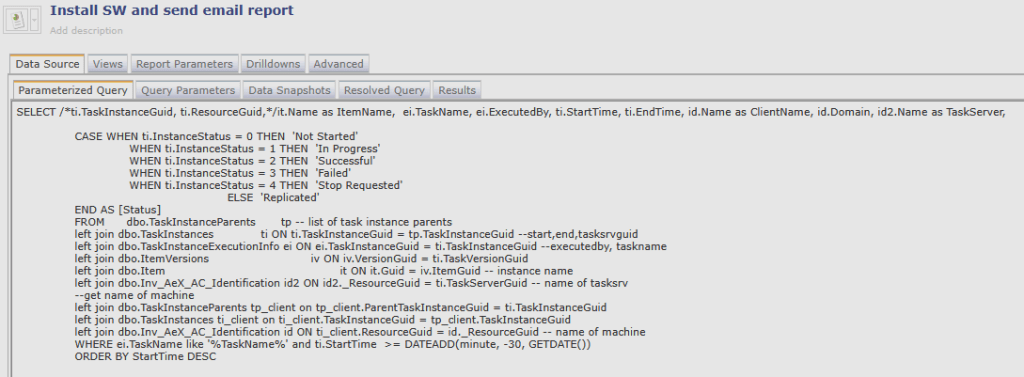
SELECT /*ti.TaskInstanceGuid, ti.ResourceGuid,*/ it.Name as ItemName, ei.TaskName, ei.ExecutedBy, ti.StartTime, ti.EndTime, id.Name as ClientName, id.Domain, id2.Name as TaskServer, pu.[User] as PrimaryUser,
    CASE WHEN ti.InstanceStatus = 0 THEN 'Not Started'
         WHEN ti.InstanceStatus = 1 THEN 'In Progress'
         WHEN ti.InstanceStatus = 2 THEN 'Successful'
         WHEN ti.InstanceStatus = 3 THEN 'Failed'
         WHEN ti.InstanceStatus = 4 THEN 'Stop Requested'
         ELSE 'Replicated'
    END AS [Status]
FROM dbo.TaskInstanceParents tp -- list of task instance parents
LEFT JOIN dbo.TaskInstances ti ON ti.TaskInstanceGuid = tp.TaskInstanceGuid --start,end,tasksrvguid
LEFT JOIN dbo.TaskInstanceExecutionInfo ei ON ei.TaskInstanceGuid = ti.TaskInstanceGuid --executedby, taskname
LEFT JOIN dbo.ItemVersions iv ON iv.VersionGuid = ti.TaskVersionGuid
LEFT JOIN dbo.Item it ON it.Guid = iv.ItemGuid -- instance name
LEFT JOIN dbo.Inv_AeX_AC_Identification id2 ON id2._ResourceGuid = ti.TaskServerGuid -- name of tasksrv
--get name of machine
LEFT JOIN dbo.TaskInstanceParents tp_client ON tp_client.ParentTaskInstanceGuid = ti.TaskInstanceGuid
LEFT JOIN dbo.TaskInstances ti_client ON ti_client.TaskInstanceGuid = tp_client.TaskInstanceGuid
LEFT JOIN dbo.Inv_AeX_AC_Identification id ON ti_client.ResourceGuid = id._ResourceGuid -- name of machine
LEFT JOIN dbo.Inv_AeX_AC_Primary_User pu ON pu._ResourceGuid = ti_client.ResourceGuid -- primary user
WHERE ei.TaskName LIKE '%TaskName%' AND ti.StartTime >= DATEADD(minute, -30, GETDATE())
ORDER BY StartTime DESC;
The SQL Report querys all Jobs / Tasks that are started during the last 30 minutes. This value can be changed if needed to a higher or lower value.
Add Report Parameters to the Report
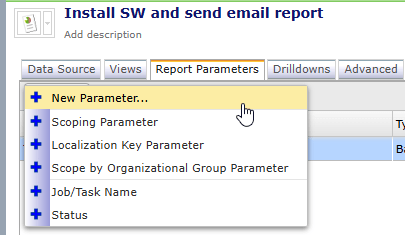
Click on Report Parameters and add a new New Parameter…
provide a Name in my case I used TaskName (see Screenshot below) provide a Description, select Basic String Parameter as Type, select % as Default value and Test value: NULL

For the Value Provider select Dropdown List Value Edit Control and add as many as needed Dropdown values. In this example only the first one is needed: Install SW and send Email: as Display Name and for the Value %Install SW and send Email% but this depends on your Job / Taskname. Make sure your Taskname matches with the provided Value(s).
click on Data Source and then click on Query Parameters and click Add -> New Parameter
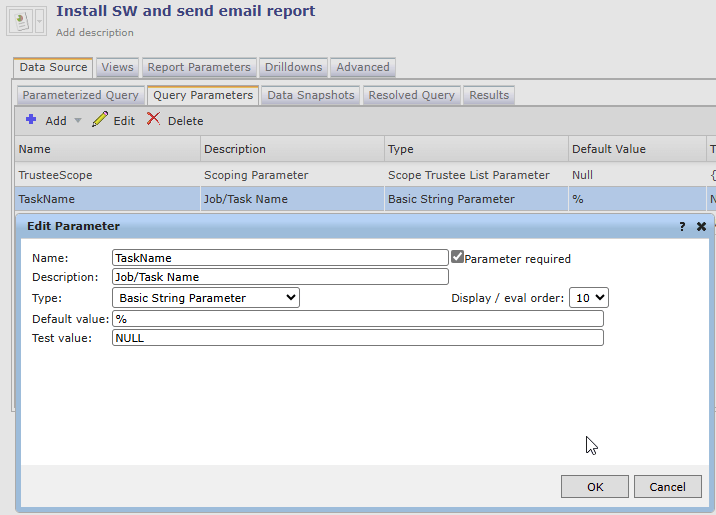
Provide a Name: TaskName and a Description: Job/Task Name. For the Type use Basic String Parameter and a Default value of % and for the Test value: NULL
Create an Automation Policy
Click on ITMS Console -> Manage -> Automation Policies -> New policy

For the Report select the previously generated SQL Report – Install SW and send email report. Click on Edit input parameter and for Job/Task Name select Install SW and send Email

For the Evaluation Rule select: Run von non-empty data
under Actions for run job/task select send automation Policy e-mail
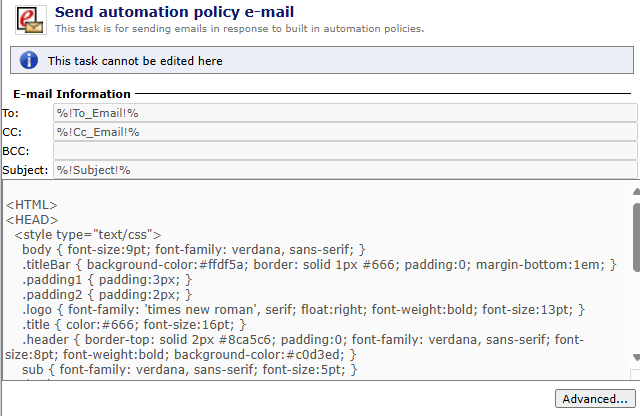
click on Edit input parameter and fill in the required Information – make sure to select Results as HTML for the Results.

click save changes
Now you can try to install an Application and run the report to see if your Report displays the necessary Information.

Here you find most of the important Information like ExecutedBy, StartTime, EndTime, ClientName the PrimaryUser and the Status of the Task.
You should now get an email with the exact same Information if you have configured the Automation policy correctly.

Many thanks to my Co-worker Alexander Hofmann for helping with the SQL Query.
Symantec KB: Send Report as Attachement using Email

 Endpoint Management