
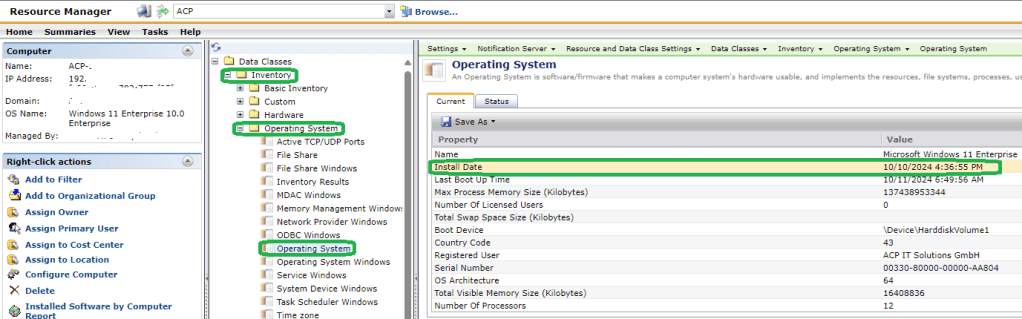
When managing a fleet of devices, knowing the exact date when each operating system (OS) was initially installed can be crucial for accurate reporting and maintenance. However, a common issue arises when you install a feature update, such as Windows 11 24H2. The OS install date gets updated to the day you applied the update, which can be misleading. This discrepancy can cause confusion, especially if your reports depend on the original install date or if you notice that the Altiris “First Discovered Date” predates the OS install date.

Why Does This Happen?
Feature updates in Windows are treated as major upgrades, similar to a fresh OS installation. As a result, the system updates the install date to reflect the most recent upgrade, not the original installation. This can obscure the true age of the device’s OS, leading to potential inaccuracies in your inventory and lifecycle management reports.
The Solution: Using Altiris Custom Inventory
To accurately track the initial OS install date, you can leverage Altiris Custom Inventory. This method allows you to capture and report the original installation date, regardless of subsequent feature updates.
To get the Information how many devices had done how many upgrades, and which upgrades specific devices had done you need to capture the Source OS registry Key(s) under HKEY_LOCAL_MACHINE\SYSTEM\Setup.
Here you can also find the initial Install Date.

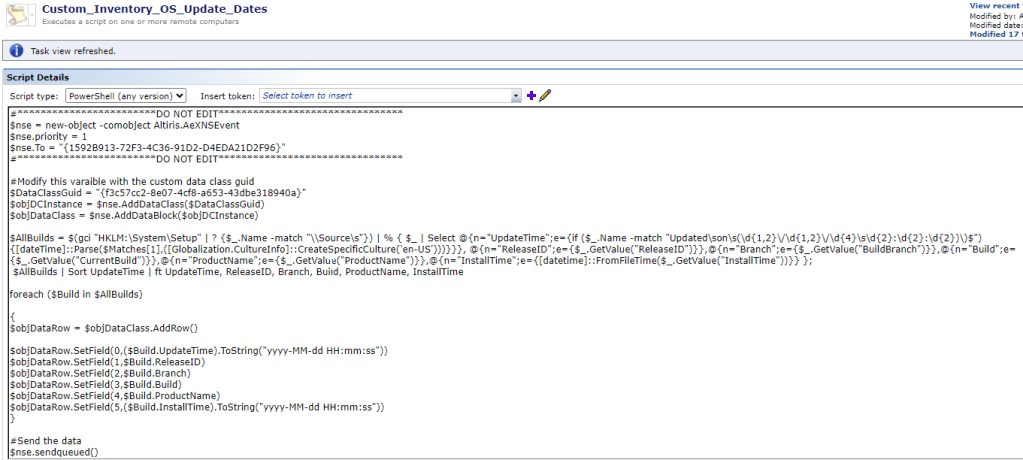
Here is the Powershell Custom Inventory Script to capture the Information
#************************DO NOT EDIT********************************
$nse = new-object -comobject Altiris.AeXNSEvent
$nse.priority = 1
$nse.To = "{1592B913-72F3-4C36-91D2-D4EDA21D2F96}"
#************************DO NOT EDIT********************************

#Modify this varaible with the custom data class guid
$DataClassGuid = "{replace with your GUID}"
$objDCInstance = $nse.AddDataClass($DataClassGuid)
$objDataClass = $nse.AddDataBlock($objDCInstance)

$AllBuilds = $(gci "HKLM:\System\Setup" | ? {$_.Name -match "\\Source\s"}) | % { $_ | Select @{n="UpdateTime";e={if ($_.Name -match "Updated\son\s(\d{1,2}\/\d{1,2}\/\d{4}\s\d{2}:\d{2}:\d{2})\)$") {[dateTime]::Parse($Matches[1],([Globalization.CultureInfo]::CreateSpecificCulture('en-US')))}}}, @{n="ReleaseID";e={$_.GetValue("ReleaseID")}},@{n="Branch";e={$_.GetValue("BuildBranch")}},@{n="Build";e={$_.GetValue("CurrentBuild")}},@{n="ProductName";e={$_.GetValue("ProductName")}},@{n="InstallTime";e={[datetime]::FromFileTime($_.GetValue("InstallTime"))}} };
 $AllBuilds | Sort UpdateTime | ft UpdateTime, ReleaseID, Branch, Build, ProductName, InstallTime

foreach ($Build in $AllBuilds)

{
$objDataRow = $objDataClass.AddRow()

$objDataRow.SetField(0,($Build.UpdateTime).ToString("yyyy-MM-dd HH:mm:ss"))
$objDataRow.SetField(1,$Build.ReleaseID)
$objDataRow.SetField(2,$Build.Branch)
$objDataRow.SetField(3,$Build.Build)
$objDataRow.SetField(4,$Build.ProductName)
$objDataRow.SetField(5,($Build.InstallTime).ToString("yyyy-MM-dd HH:mm:ss"))
}

#Send the data
$nse.sendqueued()
Output:
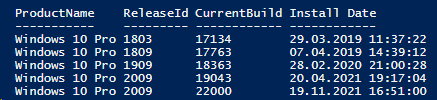

Since I´m currently do not have access to real data i just created a few registry keys with sample data to make sure the custom inventory works.

Benefits
- Accurate Reporting: Ensures your reports reflect the true age of the OS installation.
- Better Lifecycle Management: Helps in planning upgrades and replacements based on accurate data.
- Reduced Confusion: Aligns the OS install date with the Altiris “First Discovered Date,” reducing discrepancies.
By implementing this custom inventory solution, you can maintain accurate records of your devices OS install dates, even after multiple feature updates. This approach not only enhances your reporting accuracy but also supports better decision-making in your IT management processes.
Powershell Script to get Additional Information
Here is a Powershell Script that checks if HKLM\System\Setup\Source\Source OS (Updated…) exists. If the Key exists it will parse the Install Date. Else it looks under HKLM\Software\Microsoft\Windows NT\CurrentVersion for the initial Install Date.
$UpgradeKeys = Get-ChildItem -Path "HKLM:\System\Setup\Source*" -ErrorAction SilentlyContinue | ForEach-Object {Get-ItemProperty -Path Registry::$_} | Select-Object ProductName, ReleaseID, CurrentBuild, @{n="Install Date"; e={([DateTime]'1/1/1970').AddSeconds($_.InstallDate)}} | Sort-Object "Install Date"

If ( $UpgradeKeys ) {
    $OldestUpgradeKey = $UpgradeKeys[0]
    $OriginalInstallDate = $OldestUpgradeKey
    }
Else {
    $CurrentKeys = Get-ChildItem -Path "HKLM:\SOFTWARE\Microsoft\Windows NT\CurrentVersion*" -ErrorAction SilentlyContinue | ForEach-Object {Get-ItemProperty -Path Registry::$_} | Select-Object ProductName, ReleaseID, CurrentBuild, @{n="Install Date"; e={([DateTime]'1/1/1970').AddSeconds($_.InstallDate)}} | Sort-Object "Install Date"
    $OriginalInstallDate = $CurrentKeys
    }

$OriginalInstallDate
Feature Request: Please add the original or inital OS Install Date to the Operating System Dataclass

Reference:
Adamsdesk: https://www.adamsdesk.com/posts/windows-install-date/

 Endpoint Management