
Finally! Symantec has released another amazing version of their IT Management Suite on April 5, 2024. Let me provide you with some details about the new features in this release.
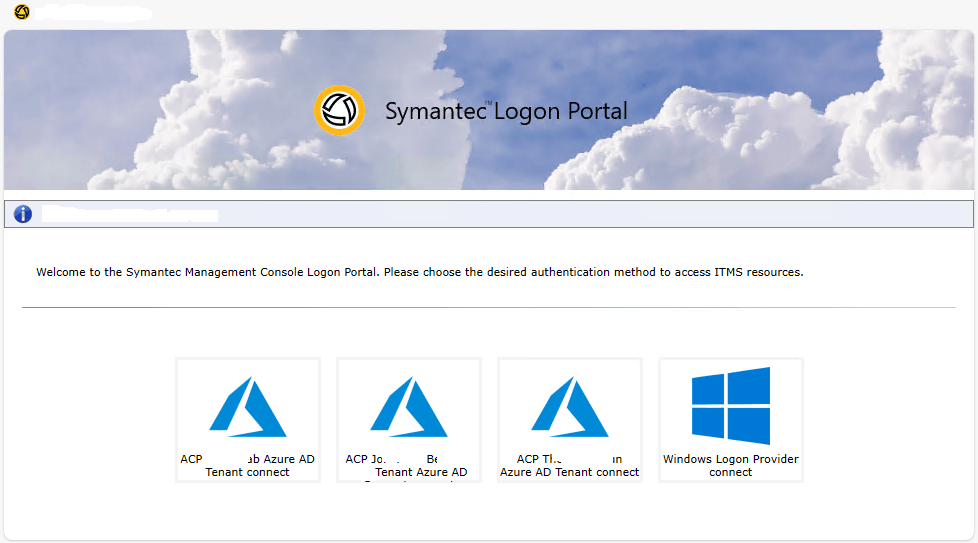
My personal highlight in this release is the Azure AD (Entra ID) integration. With this integration we are able to import resources from Entra ID (Users, Computers and Security roles) and use the imported users to authenticate against the Symantec Management Console and the Software Portal. For the best explaination on how to configure this integration follow the instruction in the white paper „Using IT Management Suite with Microsoft Entra„.
For my tests I´ve configured the integration with 3 different Azure Tenants and it works very well.
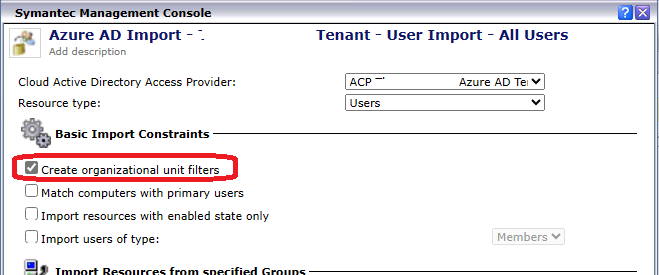
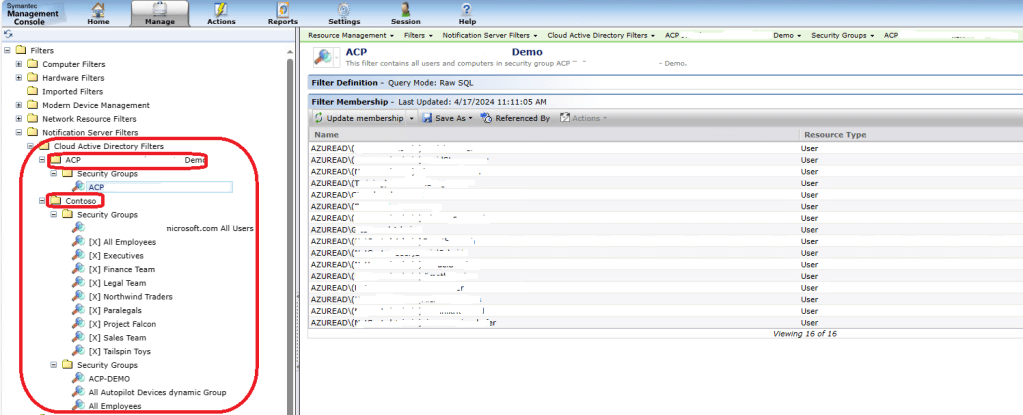
If you enable „Create organizational unit filters“ in the corresponding import rule, filters will be created.
Symantec Management Platform enhancements
Override Maintenance Windows for Automation Policies
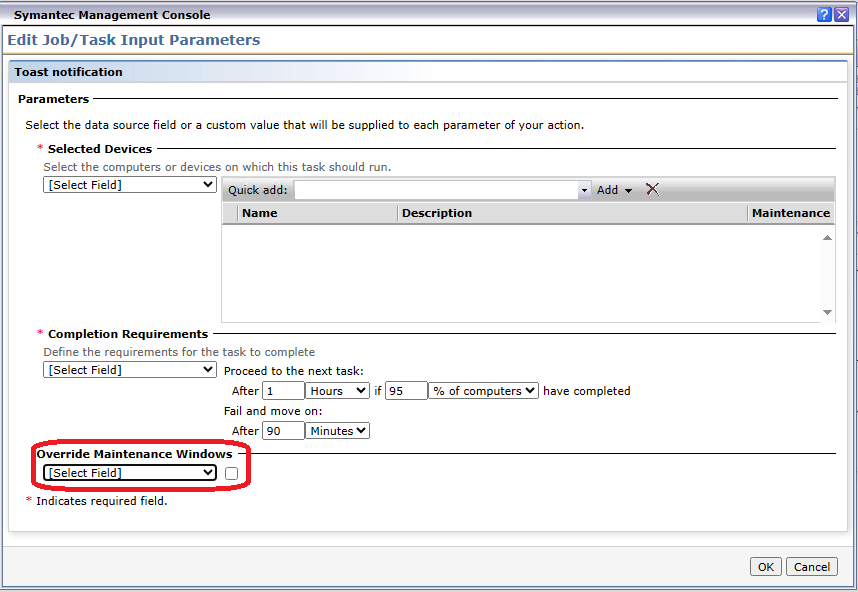
The Automation Policy’s Edit Job/Task Input Parameters dialog has a new option that is named Override Maintenance Windows. This option lets the policy run regardless of the Maintenance Window settings.
As a default, the automation policy runs only within the Maintenance Window, or if a maintenance window has been set up and enabled. If you enable a maintenance window, the schedule is ignored and the automation policy runs when the first available maintenance window opens.
Select this option to override this behavior and use the options that you specified in this automation policy. Clear this option to abide by the maintenance windows. For more information, see Viewing Information about a Computer’s Maintenance Window.
Specify how long to keep a record of task instances in the database
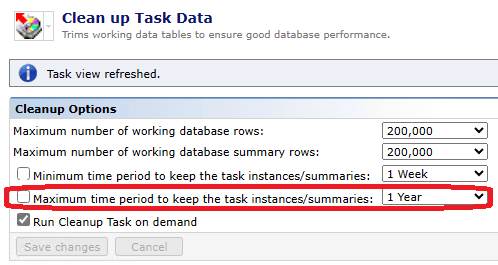
The Maximum time period to keep the task instances/summaries option in the Clean up Task Data lets you specify the maximum time period to keep the task instance summaries in the database. The Maximum time period to keep task instances/summaries option overrides the Maximum number of working database/database summary rows option. For example, if you set Maximum time period to keep task instances/summaries to 3 Months, the clean-up does not remove the task records unless they are older than three months, even if the Maximum number of working database/database summary rows is exceeded.
The Maximum time period to keep task instances/summaries option overrides the Minimum time period to keep task instances/summaries option. The Minimum time period to keep the task instances/summaries value cannot be larger than the maximum value.
For more information about how to set this option, see Cleaning up Task Data.
Purge Not Installed software
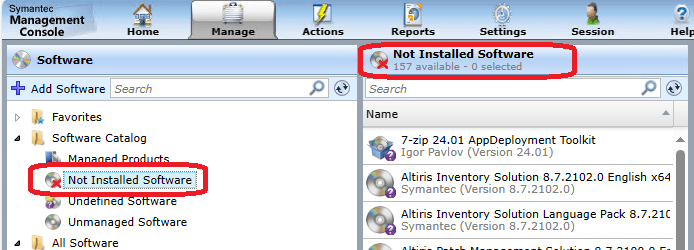
You can now see all software components that are not installed on any managed computers: Open the Symantec Management Console, and then select Manage > Software, and then expand the Software Catalog folder. Select the Not Installed Software view.
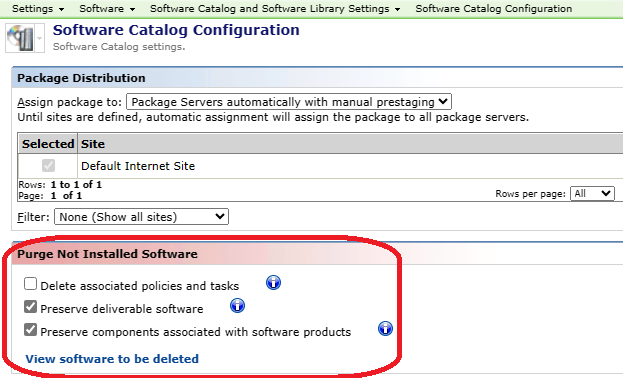
There is also a new purging schedule for the Not Installed Software in the Software Catalog Configuration page. There is View software to be deleted report where you can see what software components will be purged. By default, this purging is disabled. When enabled, a scheduled task named NS.Software catalog maintenance schedule.{bce36b8e-dfc5-4cf6-be7e-afb9282b0d3a} runs Daily at 12:30 AM.
The Purge Not Installed Software section has the following three options:
Delete associated policies and tasks: When you select this option for the Not installed Software component to delete, then the associated Managed Delivery policies, Targeted Software Inventory policies, Quick Delivery and Package Delivery tasks delete as well. If not selected, then the policies or tasks associated with the selected component will not be deleted.
Preserve deliverable software: If you select this option, a Not installed Software component that has associated packages or command lines will not be deleted.
Preserve components associated with software products: If you select this option, a Not installed Software component that is a part of a software product configuration will not be deleted.
Use any Windows account credentials with SQL Server authentication when using the Symantec Installation Manager.

You can now specify any Windows account credentials to use with SQL Server authentication when using the Symantec Installation Manager. You can use these credentials with either new installations or an off-box upgrade. In previous releases, you could only use the current Windows account: NS AppIdentity. You can also use the new Windows Authentication option to specify the Windows credentials to use for Data Connector data sources, such as the ODBC Data Source page and the OLEDB Data Source page.
Deployment Solution enhancements
Updated iPXE to version 1.21.1+ is available. This iPXE version can also be used with ITMS 8.7.1 and Ghost Solution Suite 3.3 RU11 and earlier. Check the following KB: https://knowledge.broadcom.com/external/article?articleId=280113 for detailed instructions.
Improved TFTP Settings (TFTP Window Size and TFTP blkSize) are supported starting from 8.7.2
KB: https://knowledge.broadcom.com/external/article/281045
The New Schedule dialog displays information about the maintenance window activity of added computers
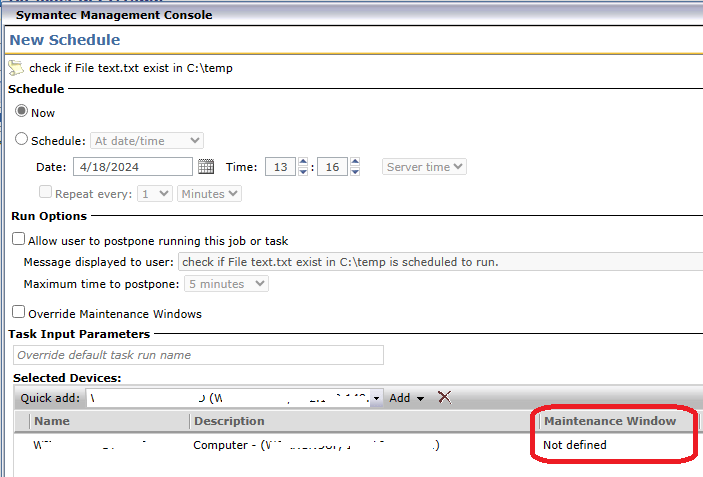
The New Schedule dialog displays information about the following statuses in regards to the added computer’s maintenance window activity:
Active: The Maintenance Window is currently active (running) on the selected client computer.
Not Active: The client computer has received one or more maintenance window policies, but these policies are not currently active (running).
Not Defined: The client computer has not received any maintenance window policies.For more information, see New Schedule Dialog Box.
Bypass reboot if client already booted into preboot environment
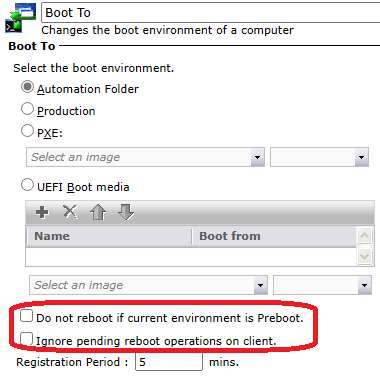
The Boot To task now includes a setting called „Do not reboot if current environment is Preboot„. This feature enables the system to bypass rebooting into the Preboot environment if the client is already booted into it. For more information, see Creating a Boot To Task.
New icon in Task Instance Details
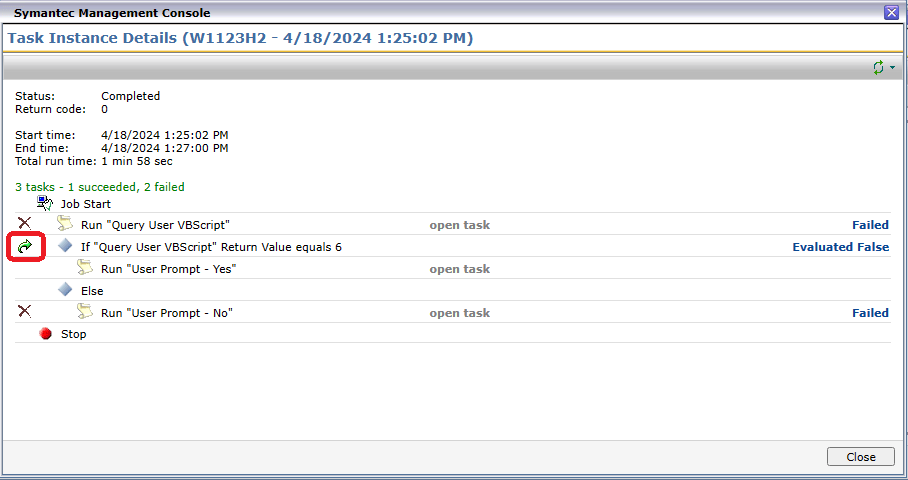
In Task Instance Details, tasks with conditions evaluating as false now display a new icon, instead of the failure icon.
Inventory Solution enhancements
Inventory data now includes the System SKU Number from Windows and Linux computers

The Computer System inventory data class has been extended by populating the System SKU Number from Windows and Linux computers, where it is available.
Inventory Agent gathers information about system boot mode
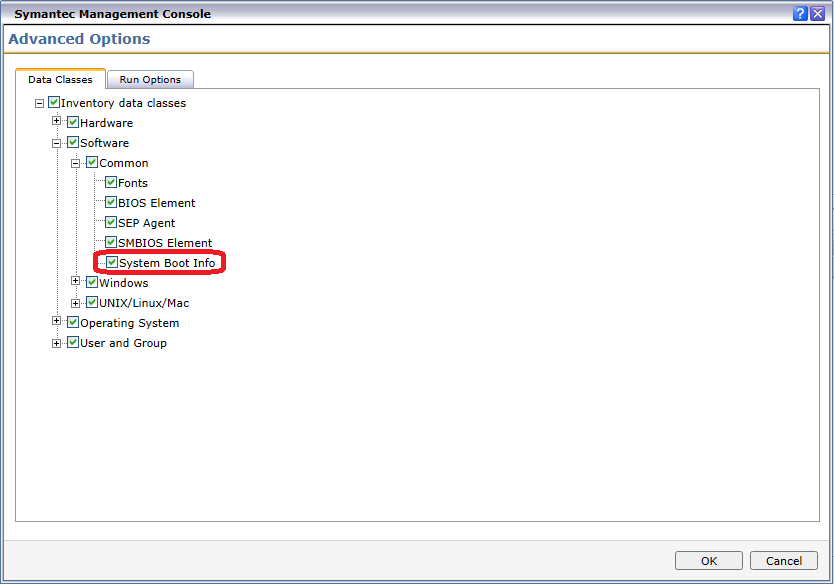
The Inventory Agent can now gather information about your systems boot mode (BIOS or EFI) and its Secure Boot status. To gather this information, include the System Boot Info data class to the scope of the inventory task or policy. The System Boot Info data class is a part of Hardware Inventory, and can be enabled in the Advanced Options of the inventory task or policy under Hardware > Software > Common in the Inventory data classes tree.
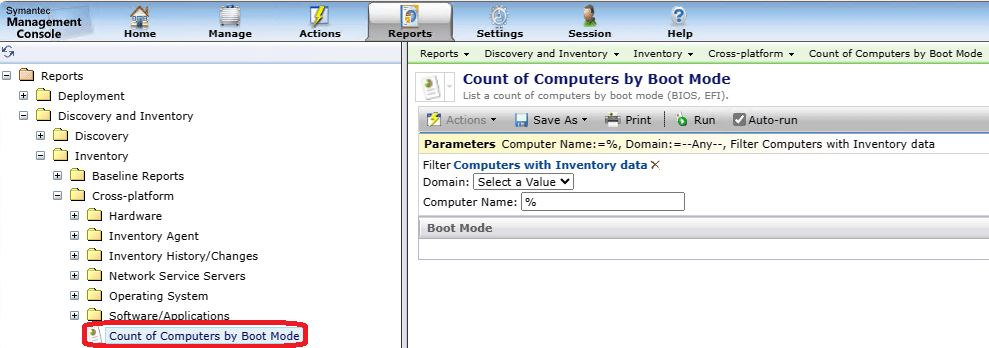
All data is available in the newly added Count of Computers by Boot Mode report. This report displays the number of computers with BIOS boot mode and the number with EFI boot mode.The Count of Computers by Boot Mode report appears in the following location: Reports > Discovery and Inventory > Inventory > Cross-platform > Count of Computers by Boot Mode. With this report, you can drill down to see a detailed list of computers by BIOS boot mode or by EFI boot mode. The detailed list also shows the Secure Boot status for each reported machine.
Patch Management enhancements
New options to not create and send NSEs related to a Windows patch scan
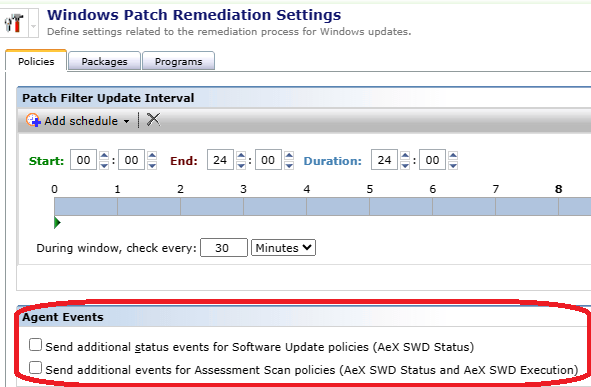
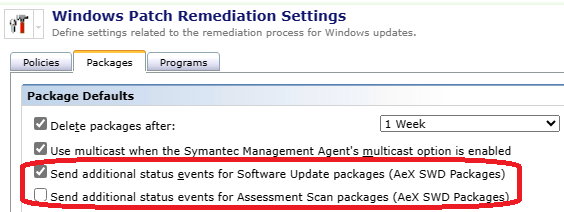
You can decide whether to create and send Notification Server Events (NSEs) related to Windows policy and package patch scans. For more information, see the Options on the Policy and Package Settings tab of the Windows Patch Remediation Settings Page section of the Windows Patch Remediation Settings Page topic.
Randomize the Patch assessment start time
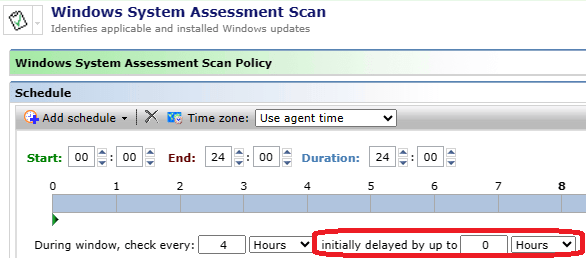
As an administrator, you can randomize the Patch assessment start time so that it does not cause CPU peaks. For more information, see the Configuring Windows System Assessment Scan policy topic.
LogViewer

LogViewer can now also be used in dark mode 😊.

 Endpoint Management